The playground
Watching a flight
The HUD, the timeline, the cameras, time warp, the event feed, and the sound and voice of a launch.
Press Launch and the flight view takes the window. The side panel folds away — unless you pin it open with the pin at its top, or the Keep the panel open during flights command — and a head-up display lays the state of the flight over the 3D view. Everything on it is written by the simulation, a dozen times a second; nothing on it is a control of the vehicle. The vehicle only does what your program commands.
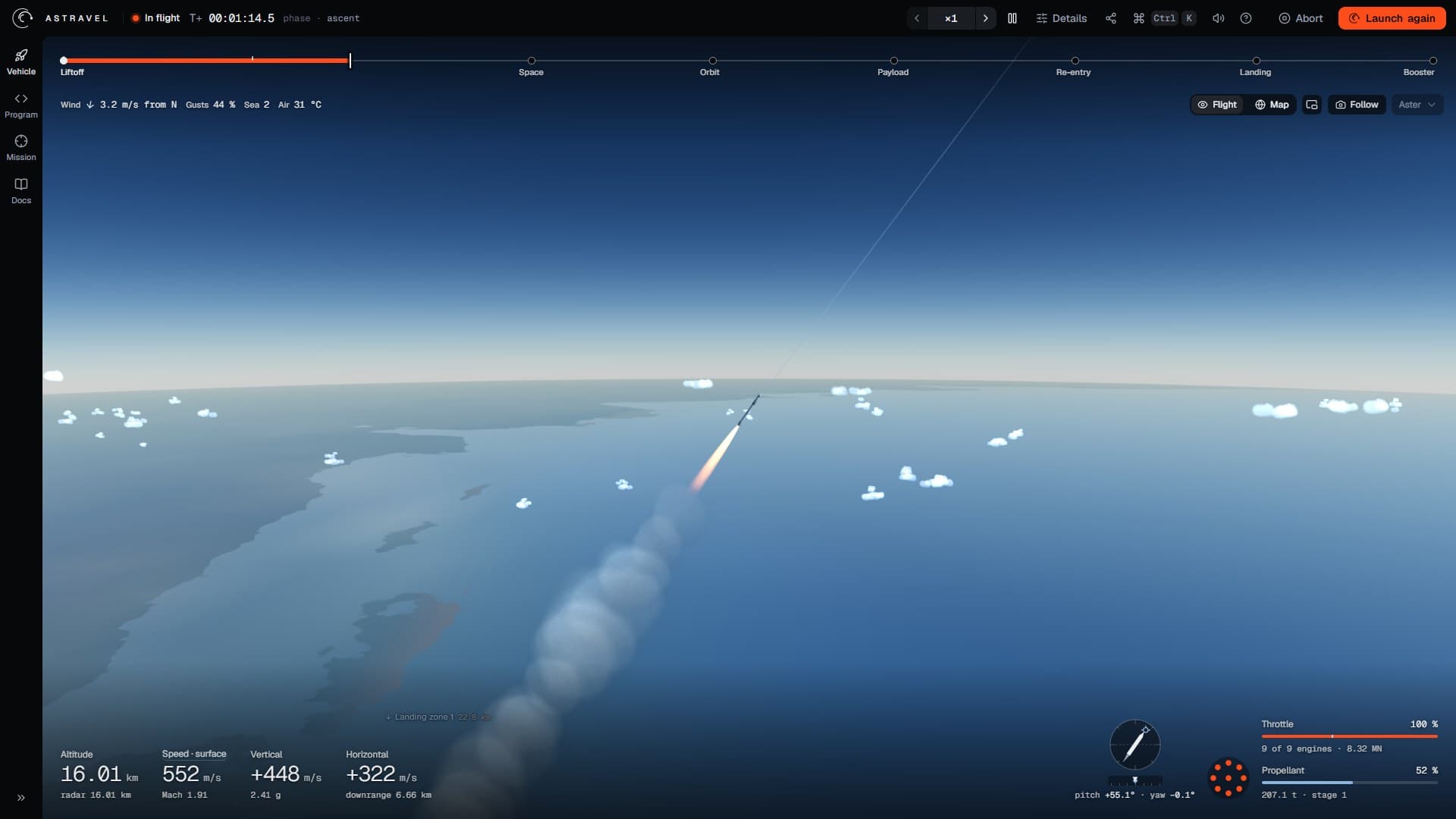
- 1Flight status, mission clock, and the phase your program has set.
- 2Time warp and pause.
- 3Abort, and Launch again.
- 4The timeline rail.
- 5The weather this flight is flying.
- 6View tools: flight or map, the inset map, the camera, the vehicle in focus.
- 7A label in the scene: Landing Zone 1 and its distance.
- 8Altitude and speeds.
- 9Attitude.
- 10The engines of the stage that is burning.
- 11Throttle and propellant.
Every part of the HUD describes the vehicle in focus — the main vehicle unless you choose another (see watching another vehicle). With the Realistic or Hard sensors chosen in the Mission panel, it shows what the flight computer sees rather than the truth, and a Sensors · realistic badge says so. On a narrow window the less essential readouts drop out first.
The top bar

On the left: a dot and a word for the state of the flight — On the pad,
In flight, In orbit, and at the end the outcome — then the mission
clock, and the phase, which is whatever your program last put in
fc.phase. The clock reads hours, minutes and seconds, and adds days once a
flight is longer than one: T+ 2 d 01:40:33.

On the right: the time warp control and pause, then Details (telemetry, charts and the console, covered in the program editor), share and export, the command palette, sound, and the list of keyboard shortcuts. Last come Abort and Launch again, the one orange control: launching lights the engines. After a flight a Flight report button joins them; the flight report explains it.
Altitude and speeds

Four large numbers, each with a line of detail under it:
- Altitude above the ground. Under it, the radar altitude below 20 km, and the apoapsis of the current orbit above that.
- Speed, relative to the ground by default. Click its label to switch between surface and orbital (inertial) speed; the line under it then gives the Mach number or the other speed. Near the Moon, which has no air, it says no atmosphere.
- Vertical speed, positive when climbing, with the g-load under it.
- Horizontal speed, with the distance downrange under it.

Coming down, the detail lines turn into a landing aid. Once a vehicle is descending below 30 km on radar, the line under Vertical gives the stopping problem: with the engine off, the altitude at which to light it (light at …); with the engine burning, where the burn will bring the vehicle to a stop (stops 9.2 m up, or below ground). The line under Horizontal then says where that stop is relative to the target — 0.4 m long · 3.0 m right. Coming back down explains the burn those numbers describe.
Away from Earth the readouts name the body they are measured against — Altitude · Moon — and switch over when the flight crosses into the other body's sphere of influence. Far from the ground, the surface speed means little: it is measured against the ground below as it turns, and at the Moon's distance that alone comes to some 20 km/s. Switch to orbital.
Attitude, engines and propellant
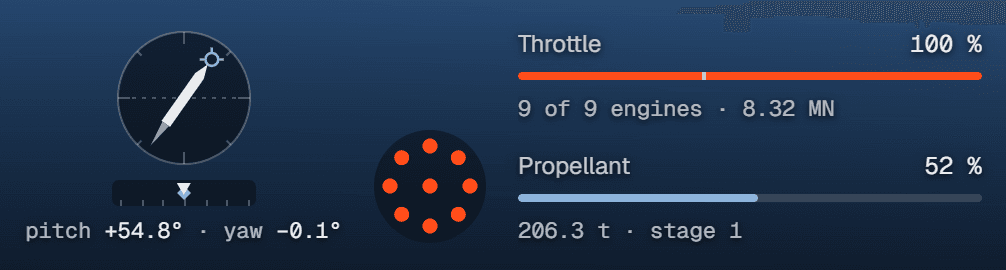
- The attitude dial is a side view of the guidance plane: the horizon,
the vehicle at its pitch — 0° forward, 90° straight up, 180° backward —
its exhaust while an engine burns, and a small circle for the direction of
motion. The tape under it is the yaw out of the plane, ±30°, positive to
the right, with the direction of motion marked on it too. The numbers under
both are the pitch and yaw that
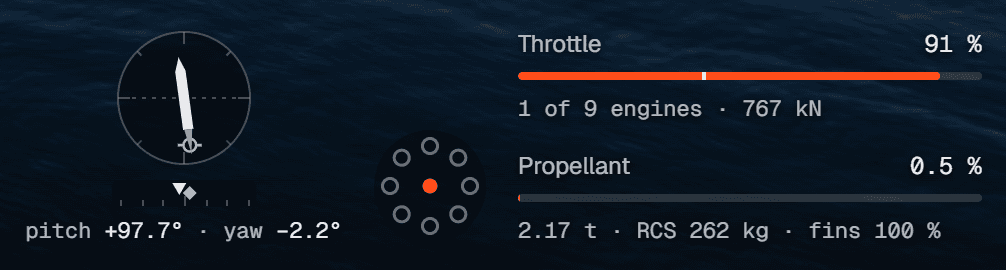
fc.steer()commands; steering and guidance explains the plane. - The engine map shows the engines of the stage in use, seen from below: orange when lit, hollow when off, crossed in red when failed. It appears only for stages with more than one engine.
- Throttle is the actual throttle, with a tick at the engine's minimum; the line under it gives how many engines are burning and their thrust, or, with the engines off, how many ignitions are left.
- Propellant is what remains in the active stage, as a percentage and a mass. It turns amber under 10 %. For a returning booster the line adds its cold gas for attitude control and how far its grid fins are deployed.
The timeline rail

The rail across the top is the flight so far and the flight still to come:
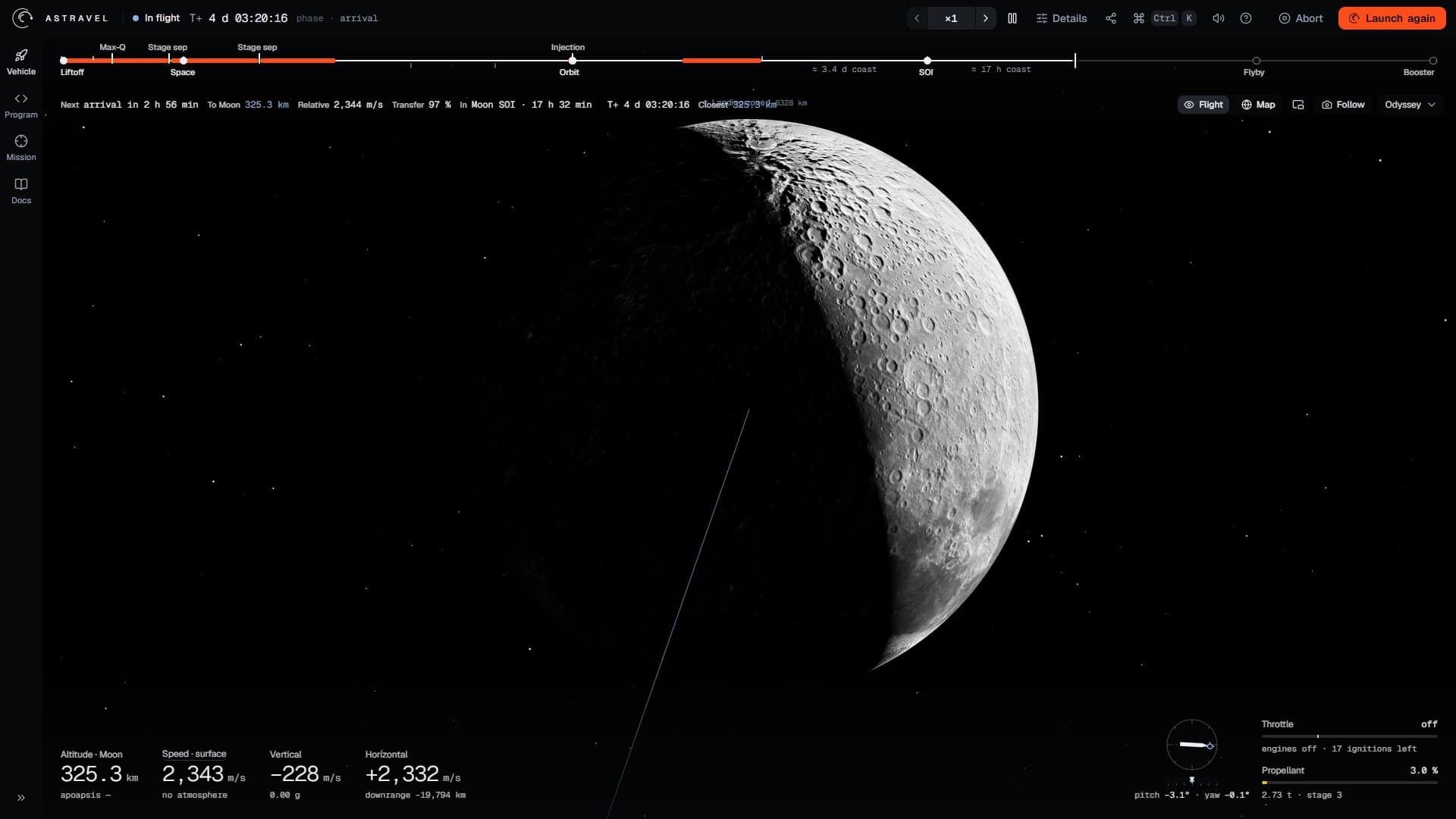
- Milestones are the mission's objectives: hollow while ahead, filled when met, red when failed.
- Ticks are events, the important ones labelled — Max-Q, stage separation, fairing, entry, peak heating, and on a flight to the Moon or Mars the injection, orbit insertion and closest approach.
- Orange segments are engine burns. A separated booster's burns run on a thin lane underneath.
- Long coasts are compressed, with a note of how long they really were — ≈ 50 min coast — so that the minutes that matter keep their room.
- A vertical bar marks now.
Click a marker, or move along the rail with the arrow keys, and a message explains it at its mission time. A loss marker opens the card that says why the vehicle was lost.
Weather and cruise

Under the rail on the left, an Earth flight shows the weather it is flying — the surface wind with an arrow pointing where it blows, the gusts, the sea state and the air temperature — then a Live tag with the forecast's time if the weather is live, Seeded (offline) if live weather could not be fetched, and the failures setting if there is one. These are the conditions frozen into the flight at launch; weather explains them.
Once a flight has left Earth, the same row becomes the cruise strip:

When nothing happens for days, the mission clock alone is no help. The strip says what comes next and when, how far there is to go to the destination's surface, how fast that range is closing, how far through the planned transfer the flight is, which sphere of influence the vehicle is in and when it will leave it, the mission time, the closest approach so far, and a warning if the chosen window cannot be reached from the site.
Cameras
The camera button lists six modes, and C cycles through them:
- Follow — the default: an orbit around the vehicle that pulls back as it climbs through the atmosphere and closes in again in vacuum.
- Chase — behind the vehicle along its direction of travel over the ground.
- Tracker — a long lens on a ground station beside the pad, or beside the landing target, on the sunlit side. Once the vehicle drops below that station's horizon it falls back to Follow.
- Deck — on the landing platform, looking up; on the drone ship it rides the swell. It needs the vehicle within 40 km of its target.
- Landing — frames the vehicle and its target together.
- Auto — picks for you: the tracker at liftoff, the landing and deck shots for the final approach, Follow otherwise. The button names the shot it has chosen: Auto · tracker.
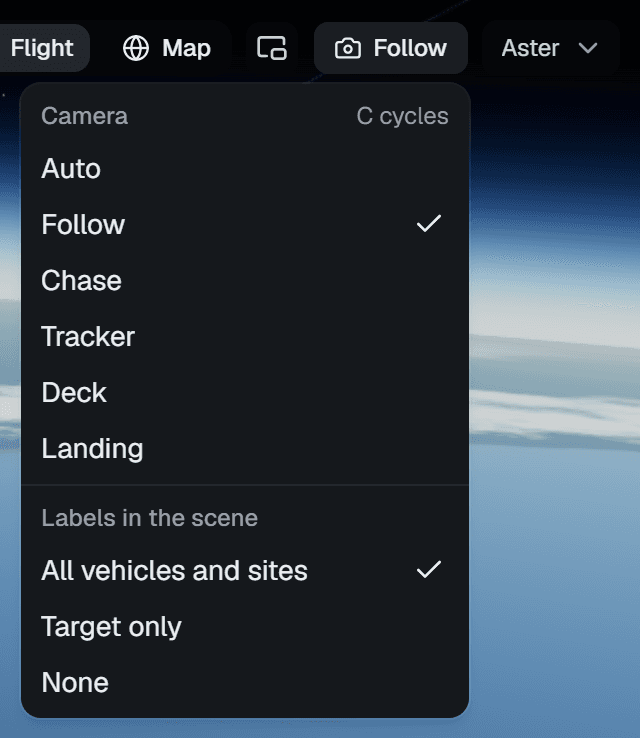
Drag to orbit the camera and scroll to zoom; with the flight view focused, the arrow keys and + / − do the same. R or a double-click puts it back. Labels in the scene chooses between labelling every vehicle and site, only the target, or nothing. The Flight / Map toggle beside the camera button, or M, swaps the 3D view for the map view, and the button between them, or N, opens the inset trajectory map in the corner of the flight view.
Watching another vehicle

When stages separate, the booster becomes a vehicle of its own, flying its own program if it has one. The message that announces it offers Watch booster (B). B switches the camera, the readouts, the engine block and the sound to the booster, and B again brings them back to the main vehicle.
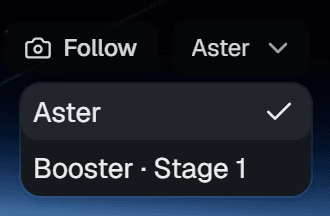
The menu at the end of the view tools does the same for any vehicle: the main vehicle, each booster, and the payload once it is deployed, marked · landed or · lost when they are down. In the map view, clicking a vehicle does the same.
Time warp
The warp control runs the flight faster than real time: ×1, ×2, ×5, ×10, ×25, ×50, ×100, ×500 and ×1000, plus As fast as possible in its menu. [ and ] step it down and up. Every launch starts at ×1.
The simulation itself does not change with the warp: it always advances in steps of 20 ms, and a higher warp only runs more of them per frame. Three things decide how fast the flight really goes:
- The computer. Each frame gets about 11 ms of stepping; if the machine cannot keep up, the flight runs slower than asked and an amber actual ×… beside the control says how fast it is really going. As fast as possible always shows it.
- The program. A program can set the warp with
fc.warp(), and the control then says so:
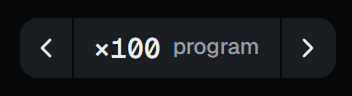
Your own choice wins until the program asks for something different.
- Cruise. Between planets, a program that calls
fc.cruise()lets the simulator take steps of minutes or hours. Then ×1 is still real time, and the higher warps cover days in seconds; missions explains the rails.
Pausing, aborting and launching again
Space pauses and resumes; Paused appears in amber under the rail, and the pause button stays pressed. Space does not pause when it would press a focused button instead, and it never presses Launch or Abort.
Abort asks first — Abort the flight? The vehicle returns to the pad and the flight is lost. — and then puts the vehicle back on the pad. Once a flight has ended, the same button reads Back to pad and asks nothing. Launch again (L, or Ctrl + Enter from anywhere, the editor included) also asks while a flight is still going — Launch again? The flight in progress will be lost. A launch compiles the program first: a syntax error stops it before anything burns.
Messages
Events arrive as one message at a time, under the rail: a title coloured by what it means — green for good news, amber for a warning, red for trouble — a line of text, the mission time, and sometimes a button, like Watch booster (B). Click a message to dismiss it. At high warp, routine messages that come too close together are skipped rather than flashed.
When a vehicle is lost, a card on the left says where and why, with the numbers, a suggestion headed Try:, and buttons to show the line of the program involved, to load an example that handles it, or to Show it. It goes away by itself after about fifteen seconds unless the pointer is on it; Esc closes it sooner.
Sound and the mission voice
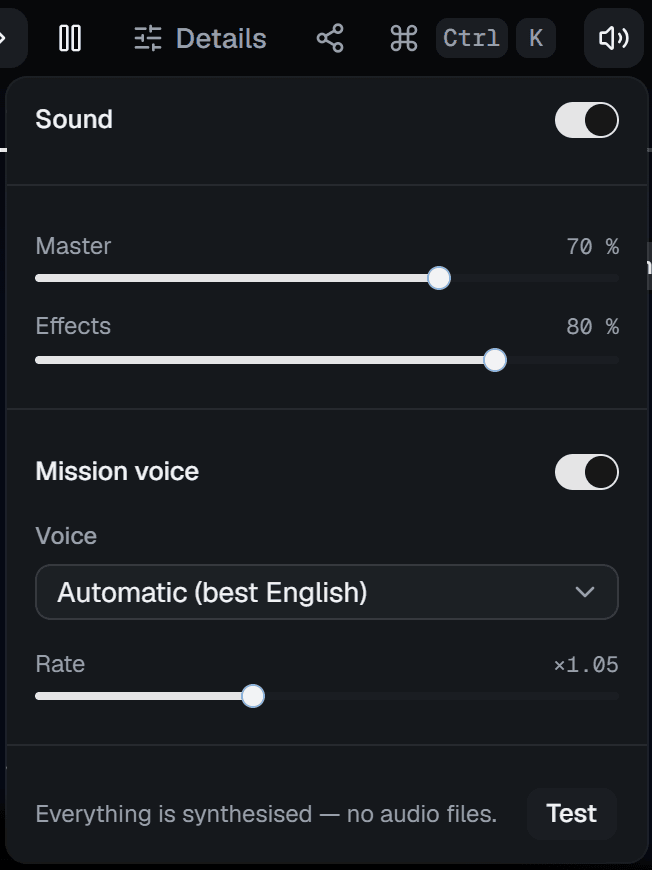
A flight is heard as well as seen, and all of it is synthesised in the browser — there are no audio files. The engines, the roar of the air and the cold-gas thrusters come from the focused vehicle, heard from where the camera is: the sound falls off with distance, reaches a distant camera late at the speed of sound, cracks as a sonic boom when the vehicle goes supersonic, and fades away as the air thins, because above about 50 km there is nothing left to carry it.
The mission voice calls the flight the way a launch broadcast does, in
short lines: Ignition, Liftoff, Max Q, MECO, Stage separation
confirmed, Orbital insertion confirmed, Entry interface, The booster has
landed, Touchdown confirmed; on the way to the Moon, TLI ignition,
Entering lunar sphere of influence and Closest approach with the distance.
When your program names a phase such as a boostback, entry or landing burn in
fc.phase, the voice announces that too. Alarms — Engine out, Loss of
vehicle, Program error — interrupt whatever is being said; minor lines are
dropped when the voice is busy, and above ×5 warp, where the engine sound
fades out as well.
The settings are Sound (everything on or off), Master and Effects volume, Mission voice on or off, the Voice — the best English voice the system has, or any installed one — and its Rate, ×0.5 to ×2. Test plays a chime and says Go for launch. Browsers only start sound after a click or a key press, so a flight launched with the mouse or the keyboard is heard from the start. If the system has no speech voices, the callouts stay silent and the settings say so.
Keys
| Key | What it does |
|---|---|
| L, or Ctrl + Enter anywhere | Launch, or launch again |
| Space | Pause or resume |
| [ and ] | Time warp slower or faster |
| M | Flight or map view |
| N | The inset trajectory map |
| C | Next camera mode |
| B | Watch the booster, or back to the main vehicle |
| R | Reset the camera |
| Arrow keys, + and − | Orbit and zoom the camera, with the flight view focused |
| T | Details: telemetry, charts and the console |
| V | Mute or unmute the sound |
| ? | The list of shortcuts |
| Ctrl + K | The command palette |
| Esc | Close a dialog, a menu or the loss card |
On a Mac, ⌘ takes the place of Ctrl. Single keys are ignored while you type in the editor or a field.